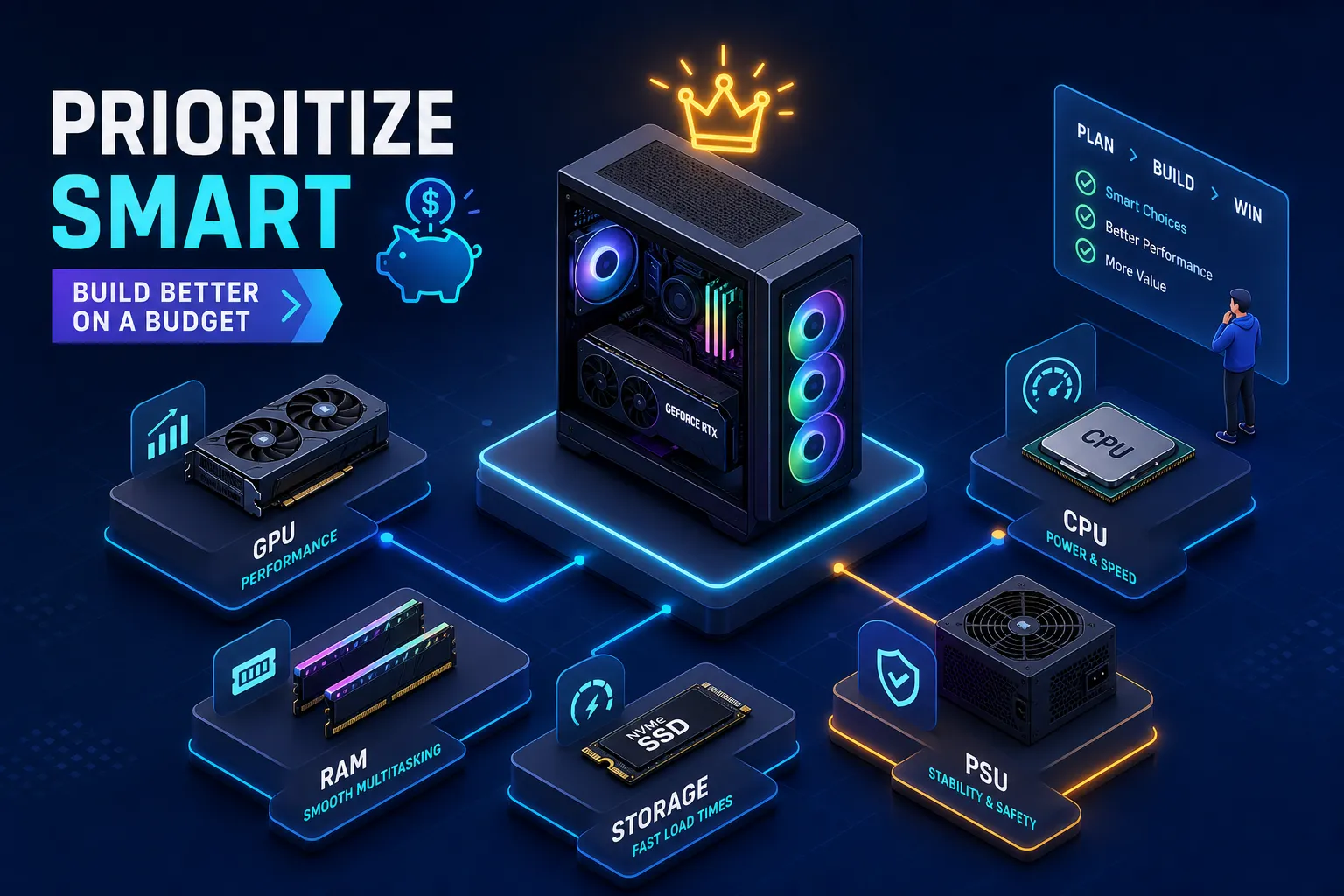
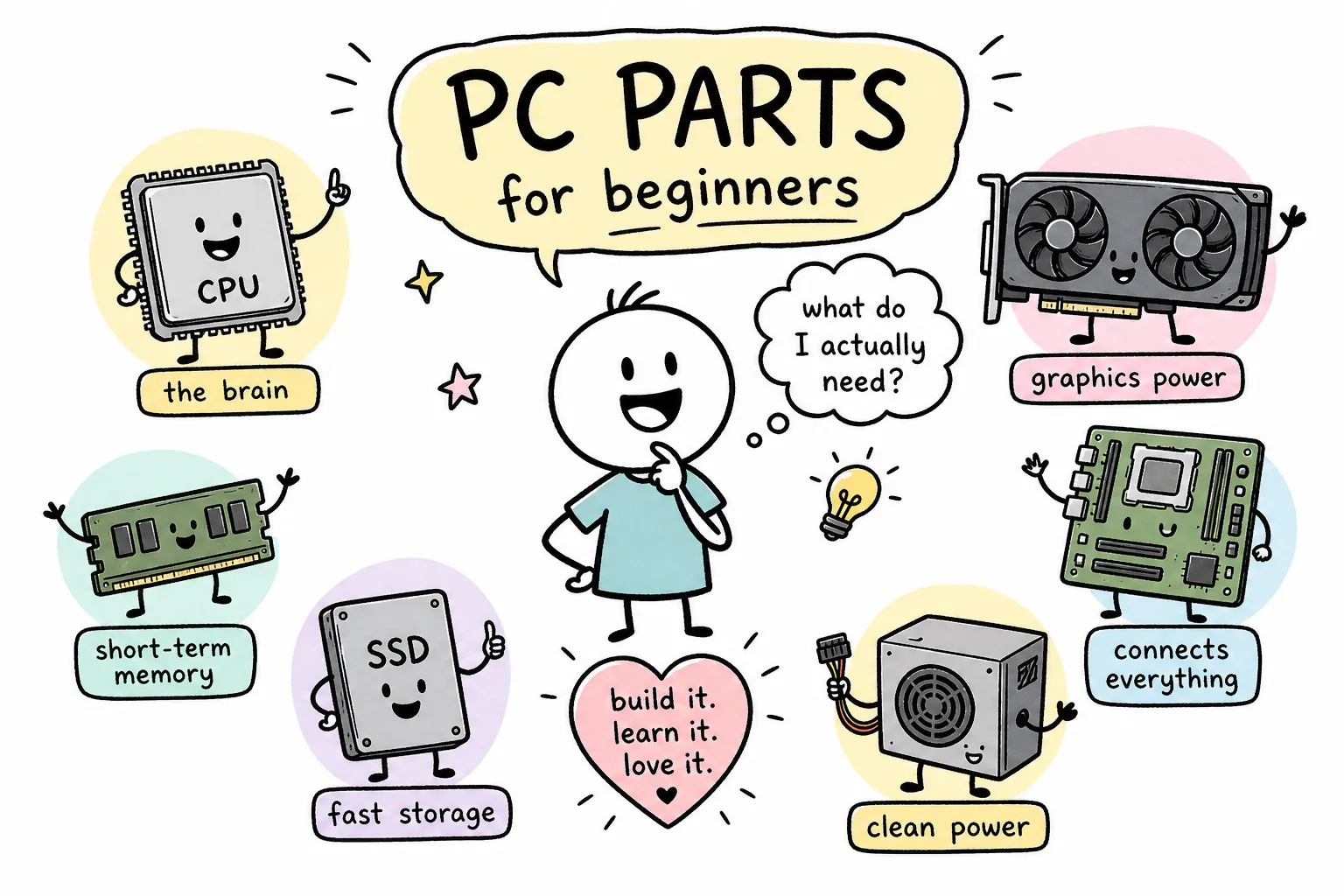
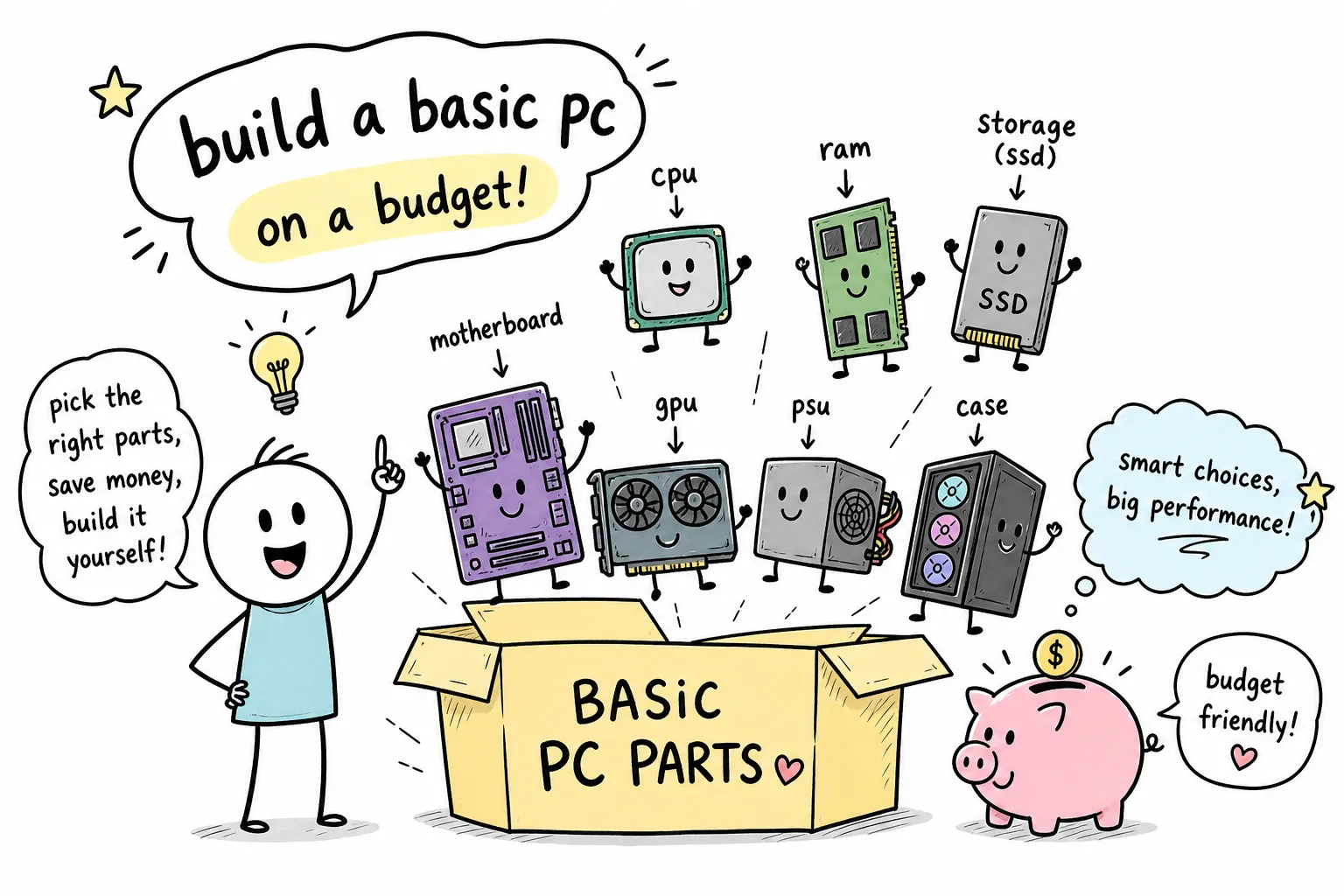
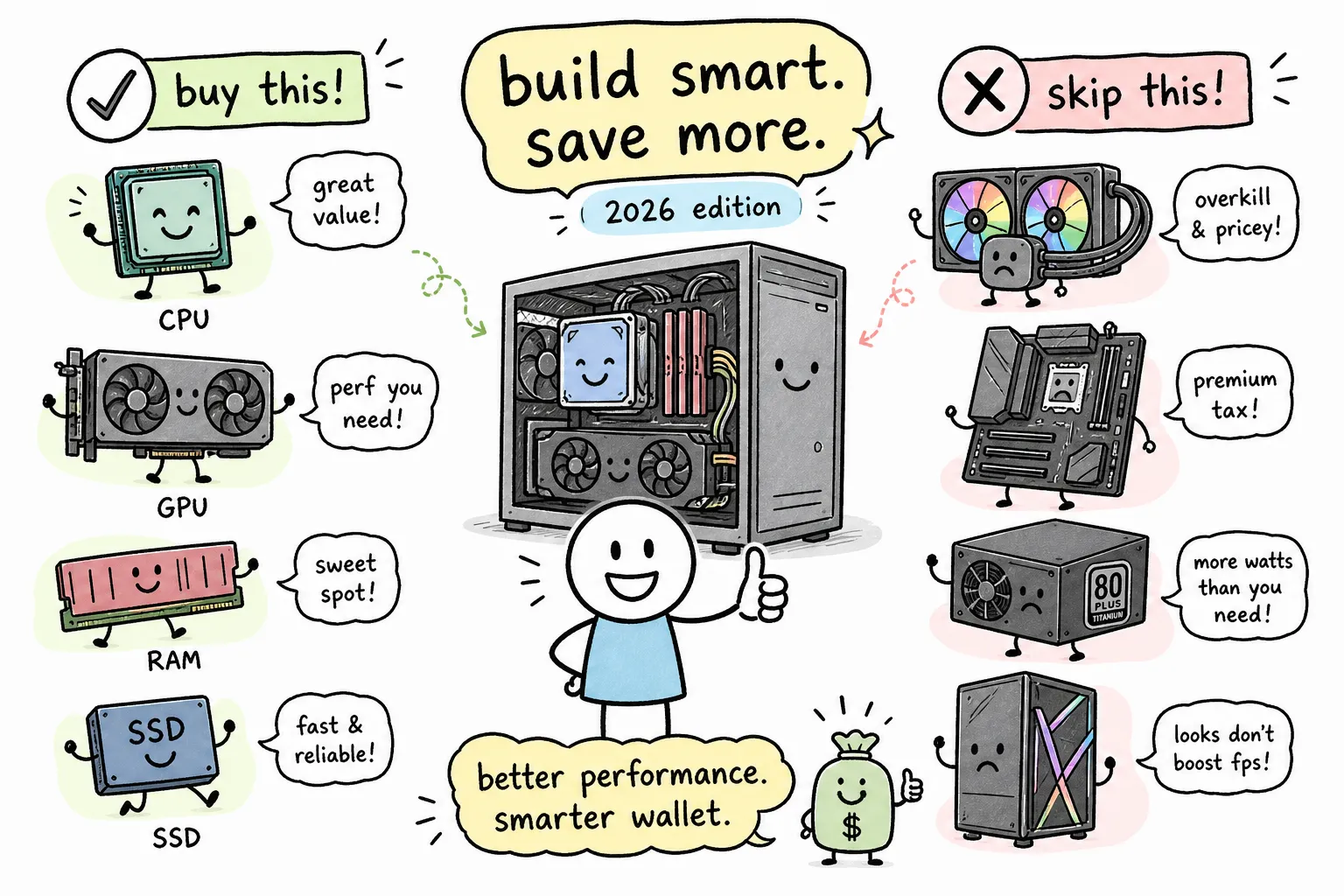
Planning a budget PC build in 2026 is genuinely achievable for most people, but only if you spend your money on the right components in the right order. This budget PC build guide shows which parts to buy first so you don’t waste money on mismatched hardware or overspend on components that won’t move the needle on gaming performance. The difference between a satisfying build and a frustrating one almost always comes down to a few decisions made before anything ships to your door.
For 2026, “budget build” means anywhere from $600 to $1,000. That range sounds wide, but it covers three distinct tiers with genuinely different outcomes. A well-planned $600 build delivers solid 1080p gaming on hardware that would have cost significantly more just a few years back. An $800 build opens the door to smooth 1080p and entry-level 1440p. A $1,000 build moves you onto a modern platform with real upgrade headroom for the next several years. This guide covers all three: what you get at each price point, the specific parts that make sense right now, and exactly how to put it together without common first-timer mistakes.
Budget PC build: what your money actually gets you at each price point
Before you open PCPartPicker, you need a clear picture of what each tier delivers, because the most expensive mistake in PC building is starting with a $700 budget and ending up with $950 worth of parts in your cart. The $600 tier is a capable 1080p machine built on AMD’s AM4 platform using proven, affordable DDR4 components. The $800 tier steps up the GPU and platform balance for smoother gameplay at 1080p and a taste of 1440p. The $1,000 tier moves to AM5 and DDR5, which costs more upfront but supports newer CPUs and delivers better upgrade flexibility over the next three to four years.
Why platform choice matters more than individual specs
The most important decision in any budget PC build is platform, not any single component. AMD’s AM4 platform with Ryzen 5000 series processors gives you the cheapest total build cost in 2026 because DDR4 memory and B550 motherboards are inexpensive and widely available. AM5 costs more upfront but supports Ryzen 7000 and 9000 series chips, so you’re not starting on an aging socket. Intel’s LGA1700 and LGA1851 platforms are worth considering only when CPU, motherboard, and RAM can be bundled at a price that’s genuinely competitive with AMD alternatives. That does happen, but it requires comparison shopping rather than defaulting to Intel.
How to use PCPartPicker before you buy anything
PCPartPicker is the standard starting point for any cheap PC build or entry-level gaming PC plan. Add parts to a list and the tool checks socket compatibility, flags memory type mismatches, and compares prices across major retailers in real time. Start with your CPU selection and build outward from there. The tool catches most hard incompatibilities, but it cannot verify every physical clearance issue, such as whether a tall CPU cooler will fit inside a compact case or whether a long GPU will clear front-panel storage drive bays. Those checks require a quick look at the spec sheets for your case and cooler side by side. For curated starting points, searching “PCPartPicker budget builds” will surface community-tested configurations you can adapt to your price tier.
CPU and motherboard picks by budget
The CPU sets the platform, and the platform determines your RAM type, your motherboard options, and your upgrade path for years. In 2026, the best picks are clearly defined by price tier. For builds under $600, the AMD Ryzen 5 5600 on a B550 board with DDR4 is the strongest value available. For $800 builds, the Intel Core i5-14400F paired with a B760 DDR4 board keeps costs down while delivering strong single-core performance. For the $1,000 tier, the Ryzen 5 7600X3D on an AM5 B650 board with DDR5 is the gaming-focused sweet spot, trading some budget headroom for a meaningful fps-per-dollar advantage.
Budget CPU picks at a glance
For sub-$200 CPUs, the Ryzen 5 5600 remains the strongest AM4 value: solid gaming and productivity performance on boards that cost as little as $80. The Intel Core i3-14100F is the right call for the tightest budgets. According to Tom’s Hardware’s early 2026 rankings, the Intel Core Ultra 5 250K Plus is their top overall budget CPU pick for 2026, positioned for several upgrade cycles on a newer platform. In the $200 to $300 range, the Ryzen 5 7600X3D stands out as the best pure gaming choice. It runs about 4.5% slower than the Ryzen 7 7800X3D at a significantly lower price, which makes the extra cost of the 7800X3D hard to justify in a budget-conscious build.
Motherboard pairing mistakes beginners make
The most damaging mistake is buying a motherboard that requires a BIOS update before it will recognize your CPU. This happens most often with AM5 boards purchased for Ryzen 7000 or 9000 series processors: the board ships with an older BIOS that predates that CPU. If the board doesn’t have a BIOS Flashback feature, you’ll need a compatible older CPU to boot and update first. The second most common error is grabbing a cheap board with inadequate power delivery for a higher-end chip. Match the board to the CPU tier you’re actually buying, not the tier you might upgrade to in three years.
The GPU decision: where most of your budget goes
In a budget gaming PC build, the GPU deserves the largest slice of the budget because it has the most direct impact on gaming performance. Frame rates at 1080p or 1440p live and die by the graphics card. For builds targeting under $300, the Intel Arc B580 at roughly $290 to $305 street price is the clearest recommendation right now.
Entry-level GPU options under $300
The Arc B580 leads this tier at around $290 to $305; for a wider comparison of current models and positioning, see PC Gamer’s best graphics cards guide. The Nvidia RTX 5050 sits just above at roughly $309 street price and is the cheapest new Nvidia card worth recommending in 2026. The AMD RX 7600 XT offers a solid alternative for buyers who want proven driver stability, typically priced around $299 to $349. Comparing all three: the B580 wins on price-to-performance but requires some tolerance for occasional driver quirks on older titles; the RX 7600 XT is the safe, boring choice in the best sense of the term.
When to stretch the GPU budget and when not to
Stepping to $350 to $370 for the RTX 5060 unlocks reliable 1080p ultra settings and credible entry-level 1440p performance. The AMD RX 9060 XT 16GB is a strong option for 1440p entry builds at $399 to $449 MSRP, though mid-2026 street prices have been tracking closer to $464, which changes the math. One mistake worth flagging: cutting $30 off the GPU to save money while overspending on a CPU that already exceeds what the game engine can use. The GPU bottleneck shows up first in gaming workloads, almost without exception.
RAM, storage, PSU, and case: the supporting parts beginners get wrong
These four components don’t generate excitement, but they cause the most build problems when chosen carelessly. An underpowered PSU can damage components under load. DDR5 memory physically won’t seat in a DDR4 motherboard slot. A case that’s two centimeters too short for a long GPU is a frustrating and expensive discovery after shipping. Get these parts right and the actual assembly goes smoothly.
RAM and storage minimums for a low-cost desktop build in 2026
For AM4 builds, 16GB DDR4-3600 is the practical floor. For AM5 builds, 16GB DDR5-5200 is the right starting point. Dropping below 16GB is likely to become limiting for modern games and multitasking relatively quickly, based on current game memory requirements. For storage, a 1TB NVMe SSD is the standard minimum; a 512GB drive fills up faster than most people expect once the OS, a few games, and software updates accumulate. Always verify your chosen RAM kit against the motherboard’s QVL (qualified vendor list) to avoid compatibility surprises at first boot.
PSU sizing, efficiency ratings, and the connector trap
For most budget gaming builds using an RTX 5060 or RX 9060 XT, a quality 650W 80+ Bronze PSU is the right floor. A 750W 80+ Gold unit is the smart choice for $1,000 builds with newer GPUs, where headroom matters for longevity and noise levels. The most common beginner PSU mistake isn’t buying too few watts; it’s buying a PSU with enough wattage but the wrong GPU power connector. Before checkout, confirm your GPU’s connector requirement (standard 8-pin, 16-pin, or 12VHPWR) and verify your PSU ships with that cable.
Budget PC build parts lists: $600, $800, and $1,000 for 2026
Each list below reflects real 2026 street prices, not MSRP, and is cross-checked for compatibility using Tech Guided source data. Check PCPartPicker for any recent price drops before ordering, as component prices shift frequently and regional availability varies.
The $600 build: best affordable PC build on AM4
This AM4/DDR4 configuration handles 1080p gaming at medium-high settings reliably and represents the strongest complete build a PC under $600 in 2026. The trade-off at this tier is GPU headroom: the Arc A750 performs well at 1080p but will start to show limits if you move to 1440p or more demanding titles in the next year or two.
- CPU: AMD Ryzen 5 5500
- Motherboard: MSI PRO B550M-VC
- RAM: 16GB DDR4-3600 (G.Skill)
- Storage: 1TB NVMe SSD (KLEVV CRAS)
- Case: Okinos Cypress 3
- PSU: Corsair 650W fully modular
- GPU: ASRock Arc A750
The $800 build: stepping up the platform and GPU
This tier makes sense for anyone who games at 1080p regularly and wants more than casual performance. The i5-14400F’s single-core speed pairs well with the RX 7600 for sustained high-refresh gameplay. For the case and storage at this tier, any mid-tower ATX case with decent airflow works well; filtering by “mid-tower ATX” on PCPartPicker’s budget builds section will surface several options in the $60 to $80 range.
- CPU: Intel Core i5-14400F
- Motherboard: Asus B760M-AYM WiFi D4 II
- RAM: 16GB DDR4-3200 CL16
- Storage: 1TB NVMe SSD (any QVL-listed brand, e.g., WD Blue SN580)
- Case: Mid-tower ATX (e.g., Fractal Pop Mini or equivalent)
- PSU: 650W 80+ Bronze
- GPU: AMD Radeon RX 7600
The $1,000 build: best budget components 2026 with upgrade headroom
Moving to AM5 at this tier buys you a platform that supports upcoming Ryzen generations, making this the build that won’t feel outdated in two years. The Ryzen 5 7600X3D’s 3D V-Cache architecture delivers meaningful gaming performance gains over standard Ryzen 7000 chips at the same price point, as documented in Tom’s Hardware benchmark comparisons showing consistent fps improvements in cache-sensitive titles.
- CPU: AMD Ryzen 5 7600X3D
- Motherboard: MSI Pro B650-S WiFi
- RAM: 16GB DDR5-5200 (Corsair Vengeance)
- Storage: 1TB PCIe 4.0 NVMe SSD
- Case: Montech Sky 3 Mid-Tower
- PSU: 750W 80+ Gold
- GPU: Nvidia RTX 5060 8GB
Assembly day: build order and the mistakes that cost first-timers hours
First-time builders typically spend three to five hours on physical assembly, though that estimate varies widely depending on how familiar you are with the hardware. The assembly itself isn’t the hard part. BIOS setup, first POST, and troubleshooting a system with no display output are where time disappears. The order below sidesteps the most common delays first-timers encounter.
Step-by-step assembly order for a first build
- Install the CPU into the motherboard outside the case first. Work on a clean, flat surface.
- Seat the RAM in the correct dual-channel slots. Check your motherboard manual; on most boards, that’s A2 and B2, not A1 and B1.
- Attach the CPU cooler and connect the fan header.
- Install the motherboard into the case. Confirm standoffs are in place before any screws go in.
- Route PSU cables through the case before installing the GPU. It’s much harder to route cables around a large graphics card.
- Seat the GPU in the top PCIe slot and connect all required power cables.
- Connect all front-panel headers, SATA/M.2 data cables, and case fan connectors.
Breadboard testing before case installation is worth the extra twenty minutes. Set the motherboard on its box, connect the bare minimum: CPU, one RAM stick, GPU, PSU, and monitor. If it POSTs outside the case, you’ve already eliminated half the potential failure points before anything is screwed down.
The mistakes that trip up first-time builders
Forgetting to plug in the CPU power cable is the single most common cause of a system that powers on but shows no display. It’s the 4+4 pin connector at the top of the motherboard, separate from the main 24-pin ATX cable. The second most common issue is RAM seated in the wrong slots: dual-channel requires specific slot pairing, and the default A1/B1 assumption is wrong on many boards. Skipping case standoffs shorts the motherboard directly to the metal case panel, which prevents POST and can damage the board.
On AM5 builds especially, check for a BIOS update requirement before first boot. If your board ships with an older BIOS version that predates your CPU, it won’t recognize the processor. Boards with BIOS Flashback let you update via USB without a working CPU installed. Boards without that feature require a compatible older CPU to update first, which is worth confirming before you buy. When the system boots and you see a blank screen, check the GPU power cable before touching anything else. It’s the right answer most of the time.
Build smart, not expensive
The three-tier approach gives you a clear decision framework: pick your budget, use the matching parts list as a starting point, verify compatibility on PCPartPicker, and follow the build order on assembly day. A focused budget PC build in 2026 delivers real gaming performance at a fraction of what high-end systems cost, provided every dollar is doing actual work toward your specific gaming goals. The difference between a budget build and a compromised build is that simple.
If you’re tackling your first PC build alongside other practical projects this year, Qurabox publishes step-by-step guides across tech setup, home maintenance, and everyday problem-solving, all written with the same approach: specific, actionable, and updated for what things actually cost and work like right now. Start with the parts list that fits your budget, verify on PCPartPicker, and the assembly guide will carry you through the rest.