How to Build a PC: Beginner’s Step-by-Step Guide (2026 Parts, Budget & Setup)

Building your own PC is more than a hobby for enthusiasts. In 2026, it is one of the smartest ways to get the exact performance, features, and upgrade path you want without paying for parts you do not need. It has also become more beginner-friendly. Windows 11 is now the mainstream PC gaming OS, support for Windows 10 ended in October 2025, and current desktop platforms are designed around modern standards like DDR5, PCIe 5.0, and better driver automation.
That said, the fastest way to waste money is to buy random “best” parts without a plan. The best PC build is not the most powerful or the most expensive one. It is the one that matches your monitor, workload, budget, and upgrade strategy. This guide walks you through everything from selecting parts and checking compatibility to assembly, BIOS setup, Windows 11 installation, and troubleshooting common first-time build mistakes.
Key Takeaways
- Choose parts based on your use case, not just the flashiest component.
- Windows 11 should be your default target OS for a new build in 2026.
- 32GB DDR5 is the sweet spot for many new gaming builds, even though 16GB is still very common on Steam.
- Do not waste money on a 4K-class GPU if you are gaming at 1080p.
- AMD’s AM5 platform has one of the strongest upgrade stories because AMD says support will continue through 2027 and beyond.
- Intel’s Core Ultra 200S Plus chips also retain support for existing 800-series motherboards.
- A good power supply and an airflow-focused case matter more than many beginners expect.
Why Building a PC in 2026 Makes Sense
For a brand-new DIY PC, 2026 is a better time to build than the early years of DDR5 and PCIe 5.0 adoption. AMD’s AM5 platform now supports Ryzen 7000, 8000, and 9000 series processors, along with DDR5 and PCIe 5.0. AMD has also said that Socket AM5 support will continue through at least 2027 and beyond. Intel’s Core Ultra 200S Plus platform supports DDR5-7200 while remaining compatible with existing 800-series chipset motherboards.
The display side also makes buying decisions easier. Valve’s March 2026 Steam Hardware Survey shows that 1920×1080 remains the dominant gaming resolution at 51.93%, followed by 2560×1440 at 20.70%, while 3840×2160 is still a small minority at 4.79%. That means most gamers still live in 1080p, which makes a balanced midrange build one of the highest-value options.
Memory trends tell a similar story. Steam’s March 2026 data shows 16GB at 40.97% and 32GB at 36.62%. Even though 16GB is still common, the market is clearly moving toward 32GB as the comfortable standard for modern multitasking, newer games, browser-heavy use, and background apps.
The Four Decisions That Shape Your Entire Build
Answer these four questions before you select a single part.
1) What Are You Going to Use the PC For?
Pick one primary role:
- Gaming
- Work and study
- Content creation and video editing
- Streaming
- Coding and productivity
- Mixed use
If gaming is your top concern, you should usually invest more in the GPU than the CPU. If editing, rendering, or multitasking matters more, you should put more of the budget into CPU cores, RAM, and storage.
2) What Monitor Are You Building For?
This is where many beginner builds go wrong.
You should match the PC to the display you actually use:
- 1080p / 60–144Hz: value-first build
- 1440p / 144–180Hz: well-rounded performance build
- 4K / high refresh: enthusiast-level budget
Since 1080p is still the leading desktop gaming resolution, many first-time builders overspend by chasing benchmarks designed for monitors they do not own.
3) What Is Your Real Budget?
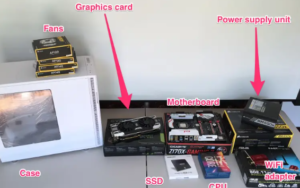
Think in terms of a full system budget, not just the “PC tower.” Include:
- Keyboard and mouse
- Monitor
- Headset or speakers
- Windows license if needed
- Wi-Fi adapter if the motherboard does not include Wi-Fi
- Extra fans if the case comes with too few
4) What Do You Value More: Raw Speed or Future Upgrades?
This matters a lot in 2026.
If you want the easiest long-term upgrade path, AMD’s AM5 platform is especially appealing because AMD has publicly committed to supporting it through 2027 and beyond. Intel’s Core Ultra 200S Plus also makes sense if you like Intel’s current direction, especially since it preserves compatibility with 800-series boards and adds support for faster DDR5 memory.
The PC Parts You Actually Need
CPU (Processor)
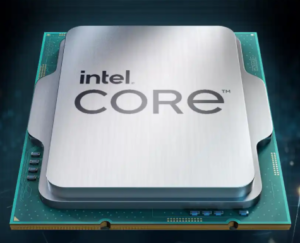
The CPU is the brain of your system. It handles game logic, background tasks, productivity work, and general responsiveness.
For most beginners:
- Modern 6-core CPUs are enough for a lot of gaming builds.
- 8-core and higher CPUs are better for heavy multitasking, content creation, or longer-term headroom.
A good AMD example is the Ryzen 5 9600X. It is a 6-core, 12-thread Zen 5 desktop CPU on the AM5 socket with a 65W TDP, DDR5 support, PCIe 5.0 support, and integrated Radeon graphics. AMD also notes that a cooler is not included, which is important because many first-time buyers assume every CPU comes with one.
On Intel’s side, the 2026 Core Ultra 200S Plus lineup brings stronger value positioning. Intel says the Core Ultra 7 270K Plus and Core Ultra 5 250K Plus support DDR5-7200 memory and remain compatible with existing 800-series motherboards.
Motherboard
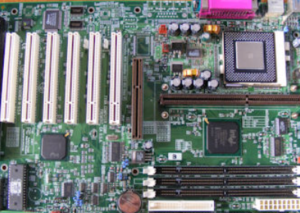
Your motherboard controls compatibility, expansion, storage, networking, and upgrade potential.
For AMD AM5, the current stack ranges from practical to premium:
- B650 / B850: strong value for most users
- X870 / X870E: better for premium features, USB4, more I/O, and heavier overclocking
AMD’s official AM5 chipset pages confirm DDR5 support across the platform, with stronger PCIe 5.0 and feature sets as you move up the range.
For Intel users, the focus is on 800-series boards for modern Core Ultra 200S desktop chips and the 2026 Plus refresh. Intel says these newer chips work with existing 800-series motherboards.
GPU (Graphics Card)
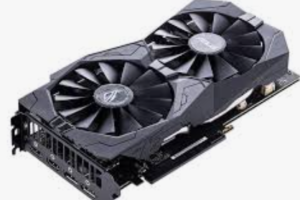
For gaming, the GPU is usually the most important component.
A good rule for 2026 is simple: do not buy a GPU for a fantasy setup. Buy one for the games you play and the monitor you actually own.
Current-Generation Example Comparison
| GPU | Best Fit | VRAM | Power Draw | PSU Guidance |
|---|---|---|---|---|
| GeForce RTX 5060 | 1080p-first gaming | 8GB GDDR7 | Up to 145W | About 550W required system power |
| Radeon RX 9070 XT | Stronger 1440p / 4K-leaning builds | 16GB GDDR6 | 304W typical board power | 750W minimum PSU recommendation |
The official RTX 5060 page lists 8GB GDDR7, 145W TGP, and a required system power of 550W. AMD’s RX 9070 XT specs page lists 16GB GDDR6, 304W typical board power, and a recommended minimum PSU of 750W. NVIDIA also launched the RTX 5060 family at $299.
RAM (Memory)
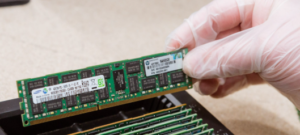
A common beginner mistake is treating RAM as either “cheap enough to ignore” or “something to upgrade later.” In real use, RAM affects smoothness, multitasking, and overall system stability.
For a 2026 new build:
- 16GB DDR5: acceptable for tighter budgets
- 32GB DDR5 (2×16GB): the better mainstream target
That recommendation matches current market reality. Steam’s March 2026 survey still shows 16GB in the lead, but 32GB is very close behind. We are firmly in the DDR5 era on today’s AMD AM5 and Intel Core Ultra desktop platforms.
Storage
For most beginners, the best starting point is:
- 1TB NVMe SSD minimum
- 2TB NVMe SSD if you install many large games or work with creative files
You do not need the most expensive SSD on the market to build a fast everyday system. Focus on reliability, decent sustained performance, and enough capacity so the drive does not fill up immediately.
Power Supply (PSU)
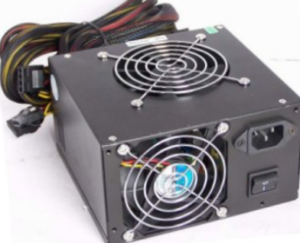
This is not the place to gamble.
80 PLUS states that the certification program offers up to seven efficiency levels, and Gold is widely considered an excellent fit for home and office desktop computing. That is why 80 PLUS Gold is so often recommended in quality midrange and high-end builds.
A good rule is to buy a PSU with some headroom instead of one that barely meets your system’s power draw.
Case and Cooling
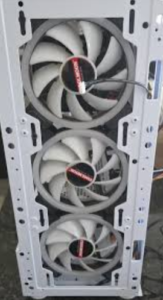
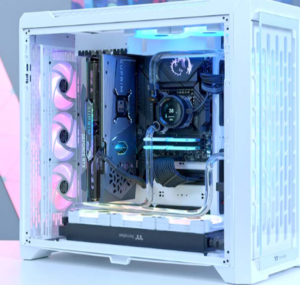
A case should do three things well:
- Fit your parts
- Move air efficiently
- Stay easy to work in
For first builds, a mesh-front airflow case is usually the safest choice. These cases run cooler, are easier to build in, and are more forgiving than sealed, glass-heavy designs.
Recommended Budget Allocation for a Beginner PC Build
This is not a strict rule, but it is a practical starting framework.
| Budget Area | Gaming-First Build | Productivity-First Build |
|---|---|---|
| GPU | 35–45% | 20–30% |
| CPU | 15–20% | 20–30% |
| Motherboard | 10–15% | 10–15% |
| RAM | 8–10% | 10–15% |
| Storage | 8–12% | 10–15% |
| PSU + Case + Cooling | 15–20% | 15–20% |
Quick Budget Tiers
| Budget (USD, roughly) | Ideal Use | What It Should Feel Like |
|---|---|---|
| $700–$900 | Office, school, light gaming | Fast daily system, sensible compromises |
| $1000–$1400 | Mainstream 1080p / entry 1440p gaming | Best value zone for most people |
| $1500–$2200 | High-refresh 1440p, creator/gaming hybrid | Stronger GPU, more RAM, better cooling |
| $2200+ | Enthusiast builds | Premium features, high-end GPU, luxury parts |
Compatibility Checklist Before You Buy
This step saves more money than almost any discount code.
Use a compatibility tool. PCPartPicker says it offers part selection, compatibility, and pricing guidance, including automatic compatibility warnings when you choose incompatible parts.
Even so, you should still verify the following manually:
- CPU socket matches the motherboard socket
- Motherboard supports your chosen RAM
- Case supports your motherboard size
- Case supports your GPU length and cooler height
- PSU has enough wattage and the correct power connectors
- Motherboard includes the M.2 slots, USB headers, and Wi-Fi features you want
- Front-panel ports match the motherboard headers
- BIOS support is new enough for your CPU
Compatibility Chain
CPU socket → motherboard chipset → RAM type → case size → PSU wattage/connectors → GPU clearance → storage slots → front-panel headers
If one link breaks, the whole build gets painful.
Step-by-Step PC Build Walkthrough
Step 1 — Set Up Your Workspace
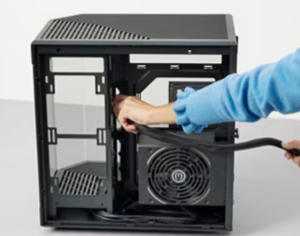
You need:
- A large clean table
- Good lighting
- A Phillips screwdriver
- The motherboard manual
- Small containers for screws
- Patience
Avoid carpet if possible. Touch bare metal occasionally to reduce static buildup.
Step 2 — Prepare the Motherboard Outside the Case
This is one of the easiest ways for beginners to build with less stress.
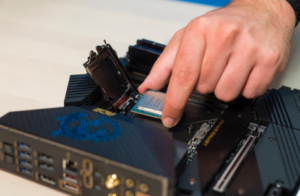
Install these first:
- CPU
- M.2 SSD
- RAM
- CPU cooler backplate or mounting hardware
CPU Install Tip
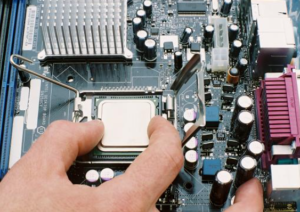
Align the triangle marker on the CPU with the marker on the socket. Do not force anything. If it does not drop in naturally, it is not aligned correctly.
RAM Install Tip
Use the RAM slots recommended in the motherboard manual for a 2-stick kit. On many boards, this is the second and fourth slot from the CPU, but always check.
Step 3 — Install the CPU Cooler
If the cooler does not come with pre-applied thermal paste, place a small pea-sized amount in the center of the CPU.
Tighten the cooler evenly. Do not fully tighten one corner before the others.
Step 4 — Prepare the Case
Install:
- Standoffs if needed
- Case fans if they are not already installed
- Rear I/O shield if the motherboard does not include one
A beginner-friendly airflow setup is:
- 2 front intake fans
- 1 rear exhaust fan
Step 5 — Install the PSU
Mount the PSU so the fan faces the case ventilation path. Route the main cables early:
- 24-pin motherboard cable
- CPU EPS cable
- GPU power cable
- SATA power if needed
Cable routing is always easier early in the build.
Step 6 — Install the Motherboard in the Case
Carefully lower the board onto the standoffs and screw it down evenly. Do not overtighten.
Step 7 — Connect Power and Front-Panel Cables
Connect:
- 24-pin motherboard power
- CPU power near the top-left of the board
- Front-panel power switch, reset, and LED cables
- Front USB
- Front audio
- Case fan headers
This is where the motherboard manual becomes your best friend.
Step 8 — Install the Graphics Card
Unless your motherboard manual says otherwise, install the GPU in the top full-length PCIe slot. Secure it with screws, then plug the power cables in fully.
Loose GPU power connections are a common cause of no-display problems.
Step 9 — Final Cable Management and Inspection
Before first boot, check:
- CPU cooler fan is plugged into CPU_FAN
- GPU power is fully connected
- RAM is fully seated
- Monitor cable is connected
- No screws are loose inside the case
- Storage drive is physically installed
- Front-panel power button is wired correctly
Step 10 — First Boot
Turn on the PSU, press the case power button, and wait.
The first boot may take longer than expected on new DDR5 systems because of memory training. If you do not see the BIOS screen immediately, do not panic.
BIOS Setup, Windows 11 Installation, and Drivers
Windows 11 should be the default OS choice for a new 2026 PC. Microsoft’s minimum requirements include a supported 64-bit processor with at least 2 cores, 4GB RAM, 64GB storage, UEFI/BIOS secure boot capability, and TPM 2.0. Microsoft also states that Windows 10 support ended on October 14, 2025.
Do This First in BIOS
- Check CPU temperature
- Verify RAM capacity
- Verify SSD detection
- Turn on EXPO for AMD or XMP for Intel if available
- Set the USB drive as the first boot device if you are installing Windows from USB
AMD supports EXPO on modern AM5 platforms, while Intel’s Core Ultra desktop platform highlights XMP-based DDR5 tuning.
Install Windows 11
According to Microsoft’s official Windows 11 download page, the Media Creation Tool can download and create installation media for another PC. A USB drive with at least 8GB is enough, and the tool supports x64 processors.
Install Drivers in This Order
Microsoft says Windows Update automatically downloads drivers for most hardware and is the best default starting point for many devices. Optional drivers can also be installed manually through Windows Update. If anything is missing, go directly to the hardware manufacturer.
A clean driver-install order is:
- Run Windows Update
- Install motherboard and chipset drivers
- Install GPU driver
- Restart
- Check Device Manager for missing devices
Common Beginner Mistakes to Avoid
1) Overspending on the Motherboard
A high-end board will not turn a budget CPU into a monster. Buy the features you will actually use.
2) Buying a Weak PSU
Bad PSUs lead to instability, extra noise, lower efficiency, and weaker upgrade options. A good 80 PLUS Gold unit is the safer mainstream choice.
3) Ignoring Clearance
A case that does not fit your GPU or cooler can turn a fun project into a refund project.
4) Forgetting the Cooler
Some CPUs do not include one. AMD’s Ryzen 5 9600X, for example, does not include a cooler.
5) Using One RAM Stick
For a new build, a dual-channel memory kit is usually the better default for both performance and stability.
6) Plugging the Monitor Into the Wrong Port
If you have a dedicated graphics card installed, connect the monitor to the GPU, not the motherboard. The exception is troubleshooting or intentionally using integrated graphics.
Build vs Prebuilt: Pros and Cons
| Building Your Own PC | Buying a Prebuilt |
|---|---|
| More control over every part | Faster and easier |
| Easier to upgrade later | Single warranty is convenient |
| Often better value allocation | Bundle pricing can be attractive |
| More learning and satisfaction | Less assembly risk |
| Requires research and time | May include weaker PSU or motherboard |
The better choice depends on what you value more: convenience or control.
A Realistic 2026 Beginner Build Strategy
If you want a build that feels smart in 2026, follow this logic:
- Choose a 1080p or 1440p target
- Go with a modern DDR5 platform
- Aim for 32GB RAM if the budget allows
- Start with a 1TB or 2TB NVMe SSD
- Pair your GPU with a quality Gold-rated PSU
- Leave room for future upgrades instead of maxing out one part today
That advice matches the current platform landscape. Windows 11 dominates, DDR5 is now standard on modern mainstream desktop setups, 1080p remains the most common resolution, and both AMD and Intel currently offer solid upgrade paths on modern boards.
FAQ
Will Building a PC Be Cheaper in 2026?
Often, yes, especially in terms of part quality and value allocation, though not always in raw upfront cost. Prebuilt systems can sometimes offer strong bundle pricing. DIY usually wins when you care about the exact motherboard, PSU, storage, and upgrade path.
How Much RAM Should I Get for My New Build?
32GB DDR5 is the safer recommendation for a new mainstream build. Steam’s March 2026 survey still shows 16GB as the most common amount, but 32GB is close behind and makes more sense for the long term.
Should I Choose Windows 10 or Windows 11?
Windows 11. Microsoft ended support for Windows 10 on October 14, 2025, and Steam’s March 2026 survey showed Windows 11 64-bit at 66.85%.
Is AM5 Better Than Intel for Beginners?
AM5 has a strong advantage for people who want a long upgrade path because AMD says support continues through 2027 and beyond. Intel still makes sense if you prefer its current desktop platform, especially since Core Ultra 200S Plus remains compatible with existing 800-series boards and supports faster DDR5 memory.
What PSU Do I Need for an RTX 5060 Build?
NVIDIA lists 550W as the required system power for the GeForce RTX 5060 reference specification. In practice, a quality PSU with some headroom is the smarter long-term choice.
What PSU Do I Need for an RX 9070 XT Build?
AMD lists a 750W PSU as the minimum recommended power supply for the Radeon RX 9070 XT.
Can I Build a PC Without a Dedicated Graphics Card?
Yes, if your CPU has integrated graphics. AMD’s Ryzen 5 9600X includes integrated Radeon graphics, which are useful for basic display output and troubleshooting. Intel’s Core Ultra desktop processors also include integrated graphics.
Conclusion
In 2026, the best beginner PC build is not the one with the biggest spec sheet. It is the one that is balanced.
Start with your monitor and use case. Choose a modern DDR5 platform. Do not cheap out on the PSU. Use compatibility tools before ordering. Assemble slowly. Then finish the job properly by setting up the BIOS, installing Windows 11, and loading clean drivers from Microsoft and your hardware vendors.
That approach gives you a faster, quieter, and more upgradeable PC than many first-time builders expect.
Final Checklist
- Define your use case
- Match the build to your monitor
- Choose the platform first
- Check compatibility before buying
- Build outside the case when possible
- Enable EXPO/XMP
- Install Windows 11 from official media
- Run Windows Update
- Install chipset and GPU drivers
- Test temperatures and stability
Sources
- Steam Hardware Survey — https://store.steampowered.com/hwsurvey
- Microsoft Windows 11 Specifications — https://www.microsoft.com/en-us/windows/windows-11-specifications
- AMD Ryzen / AM5 Platform News — https://www.amd.com/en/newsroom/press-releases/2024-6-2-amd-unveils-next-gen-zen-5-ryzen-processors-to-p.html
- AMD Ryzen 5 9600X — https://www.amd.com/en/products/processors/desktops/ryzen/9000-series/amd-ryzen-5-9600x.html
- Intel Core Ultra 200S Plus — https://newsroom.intel.com/client-computing/intel-announces-new-intel-core-ultra-200s-plus-series-desktop-processors
- AMD AM5 Chipsets — https://www.amd.com/en/products/processors/chipsets/am5.html
- NVIDIA RTX 5060 Family — https://www.nvidia.com/en-us/geforce/graphics-cards/50-series/rtx-5060-family/
- 80 PLUS / CLEAResult — https://www.clearesult.com/80plus/
- PCPartPicker About — https://nz.pcpartpicker.com/about/
- Windows 11 Download — https://www.microsoft.com/en-us/software-download/windows11
- Microsoft Driver Update Help — https://support.microsoft.com/en-us/windows/update-drivers-through-device-manager-in-windows-ec62f46c-ff14-c91d-eead-d7126dc1f7b6
- Microsoft Recommended Drivers — https://support.microsoft.com/en-us/windows/automatically-get-recommended-and-updated-hardware-drivers-0549a8d9-4842-8acb-75fa-a6faadb62507